

Accessing Your Interview
Open the link, read the notice, upload your resume, pass the device check and enter the interview room
Before You Begin
The person who invited you will send you an interview link. Use the latest Google Chrome on a computer, with a camera and a microphone ready. Find a quiet, well-lit place.
Browser recommendation
Safari and Firefox may have limited support for voice and video. Chrome is strongly recommended.Steps to Enter
Read and accept the interview notice
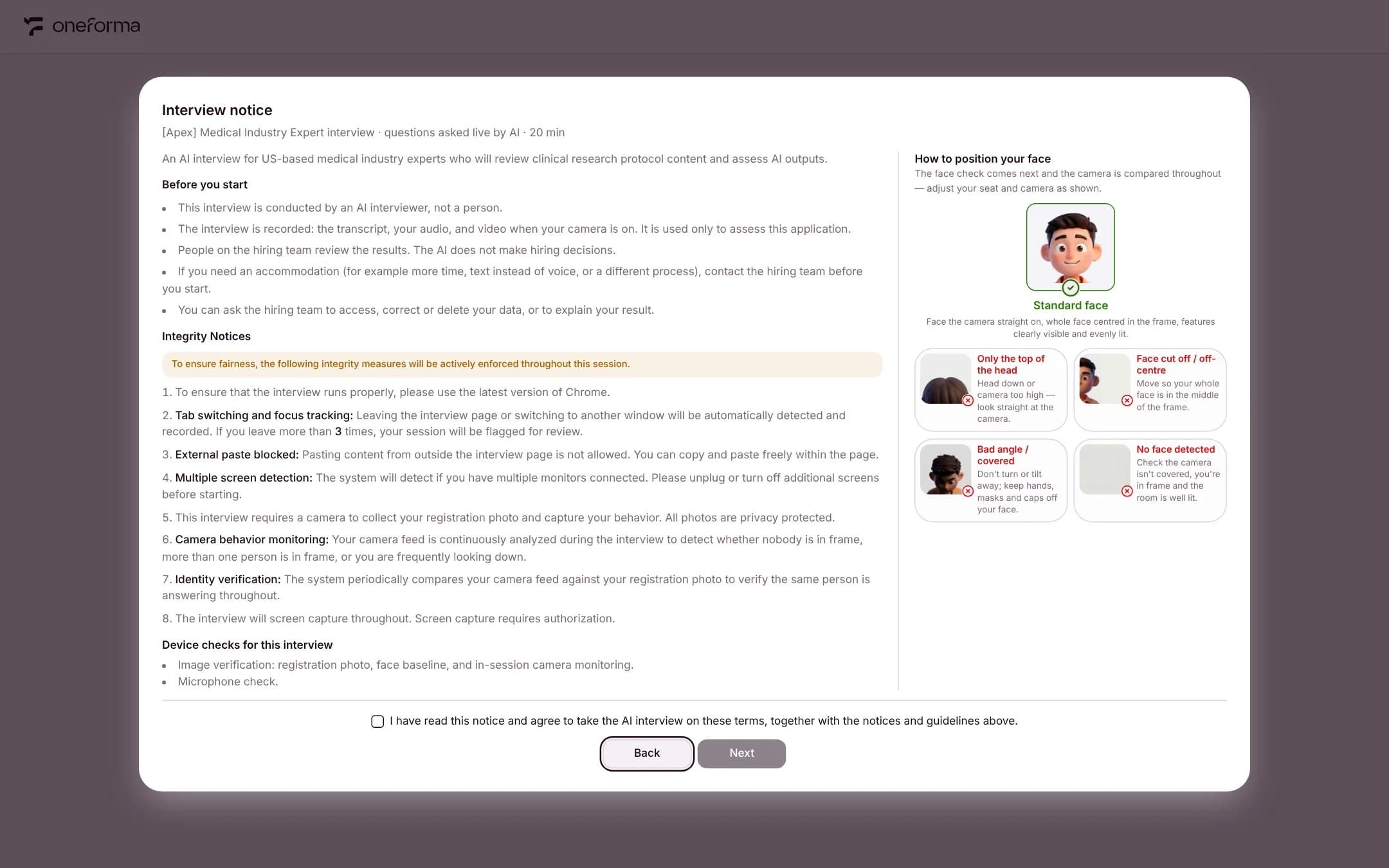
The link opens with the interview notice: the interviewer is an AI, the interview is recorded, a person at the hiring company reviews the result, and the integrity measures that apply. On the right is the face guide: one correct example and four common mistakes. Tick the box to confirm you have read it, then click Next.
Upload your resume
Upload your resume as a PDF (10MB at most) and wait a few seconds while it is read. The parsed resume appears below, along with your name, email and phone number: check them and correct anything that is wrong. The resume is used only for this interview's follow-up questions and assessment.
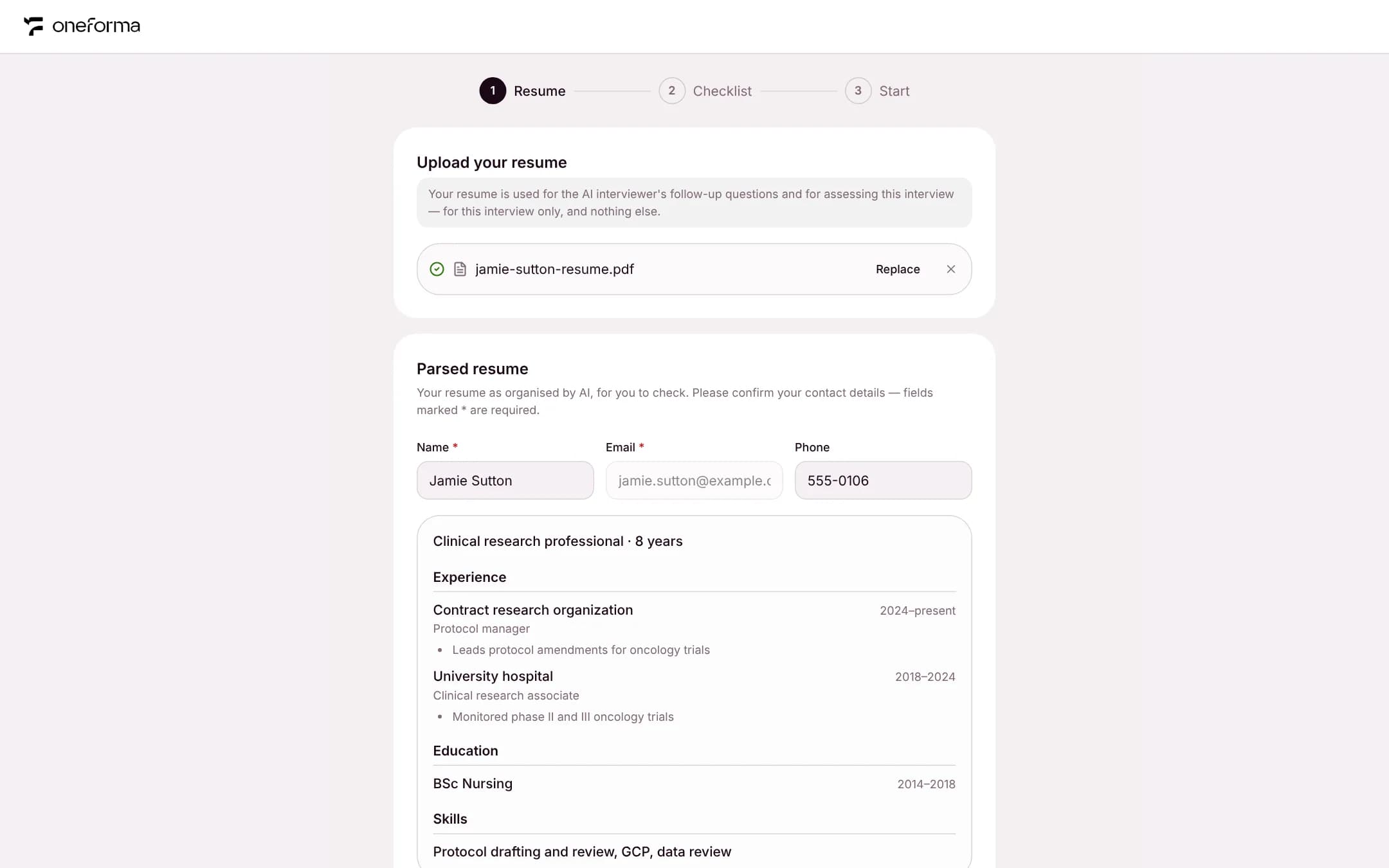
If the hiring company did not ask for a resume, this step is skipped.
Complete the device check
Follow the prompts in order: take a face photo and test your microphone. If the hiring company requires it, also share your entire screen. None of the checks can be skipped.
Enter the room and start
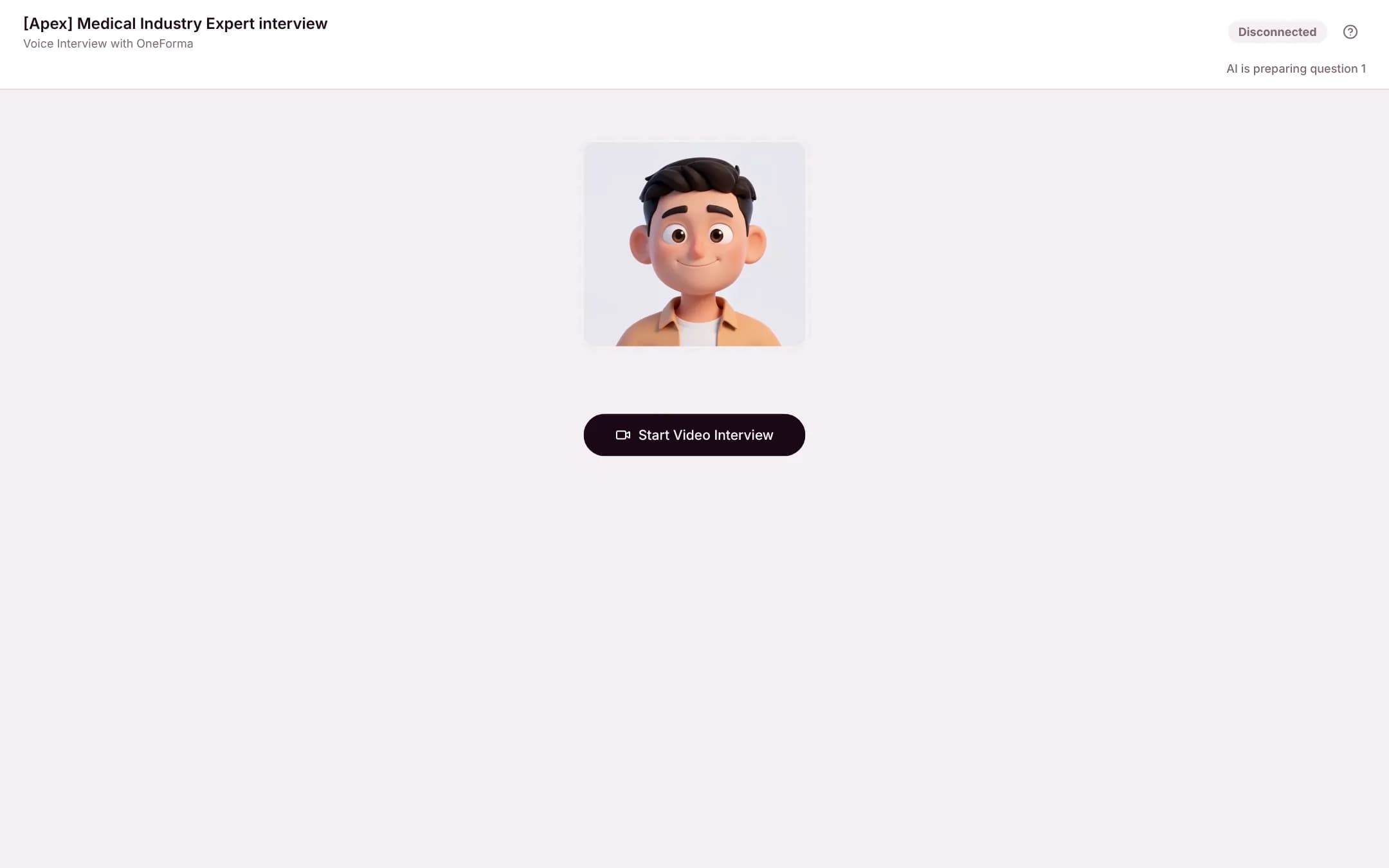
Click Enter the interview room, then Start Video Interview. The AI interviewer greets you and begins.
Tip
Before you start, close other apps that may be using your microphone or camera (Zoom, Teams, and so on).