

Quick Start: Your First AI Interview
From choosing a Job to sharing the invite link
Create Your First Interview
Creating an interview takes three steps: Criteria, Session and Verdict. Follow along and you will have an AI interview ready to send in a few minutes.
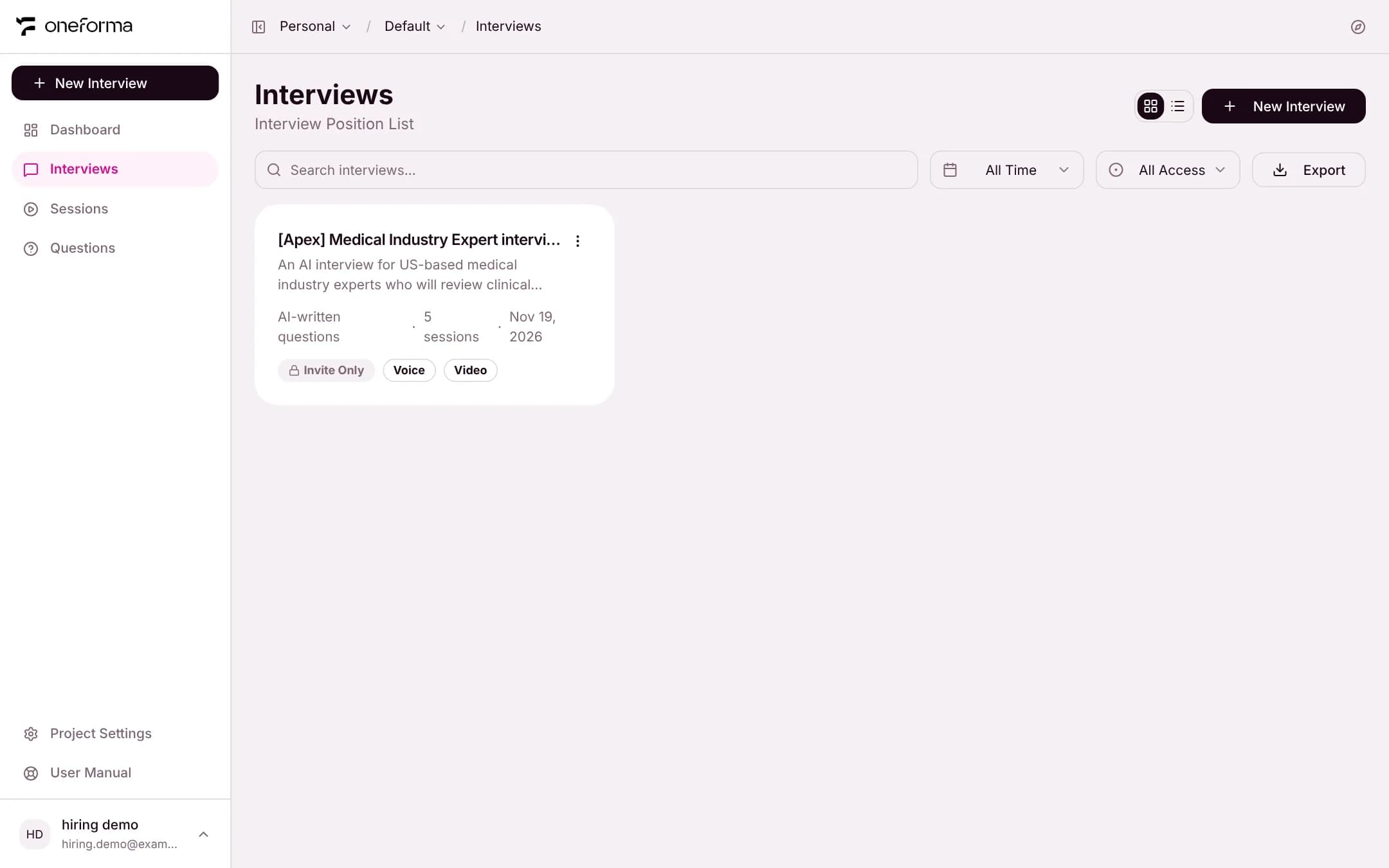
Click "New Interview"
Click + New Interview at the top of the sidebar, or the same button on the Interviews page.
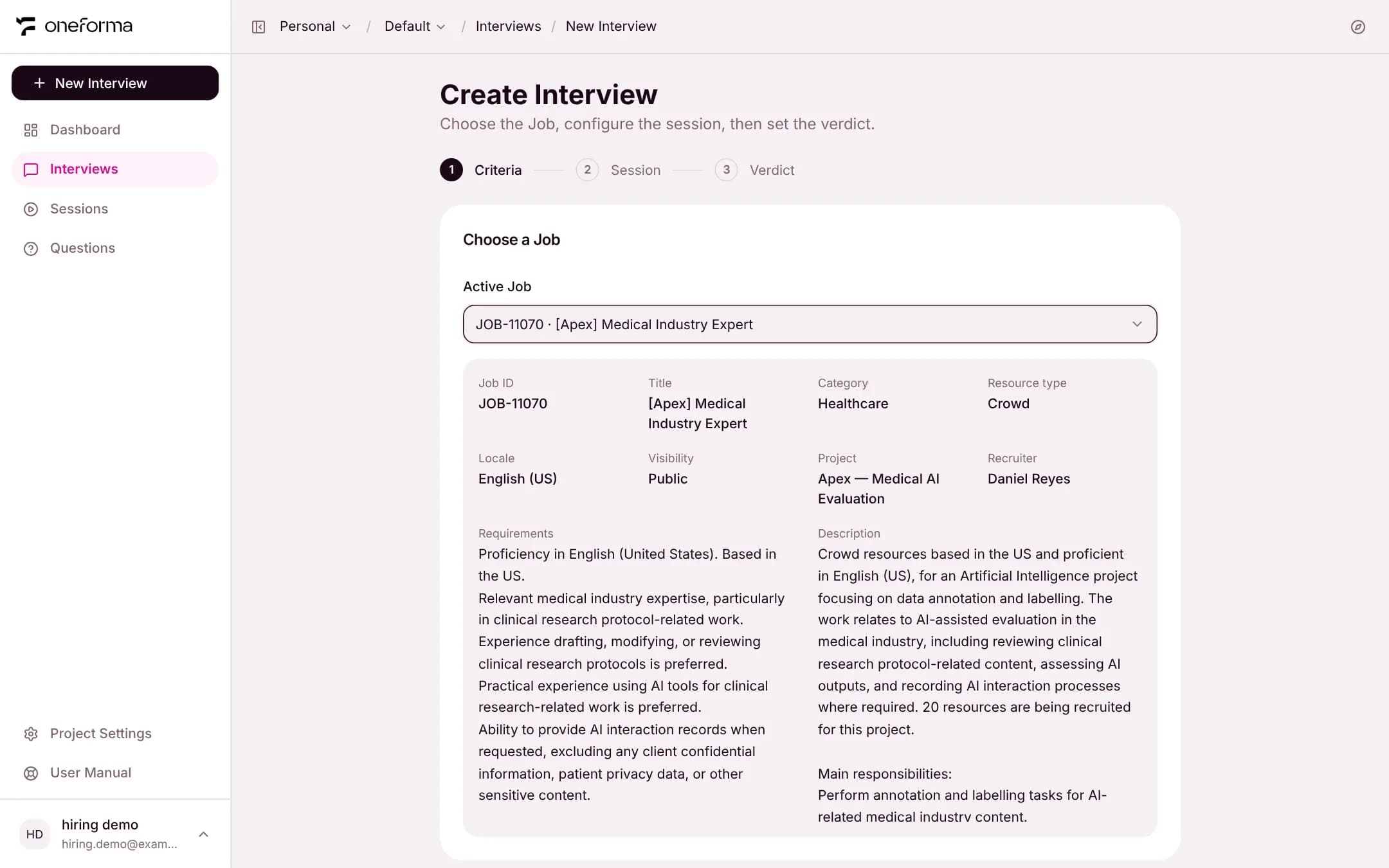
Criteria: choose a Job and confirm the criteria
Pick a Job under Active Job. The AI drafts assessment criteria and level anchors from its requirements and description, and you can edit them directly. Then click Next.
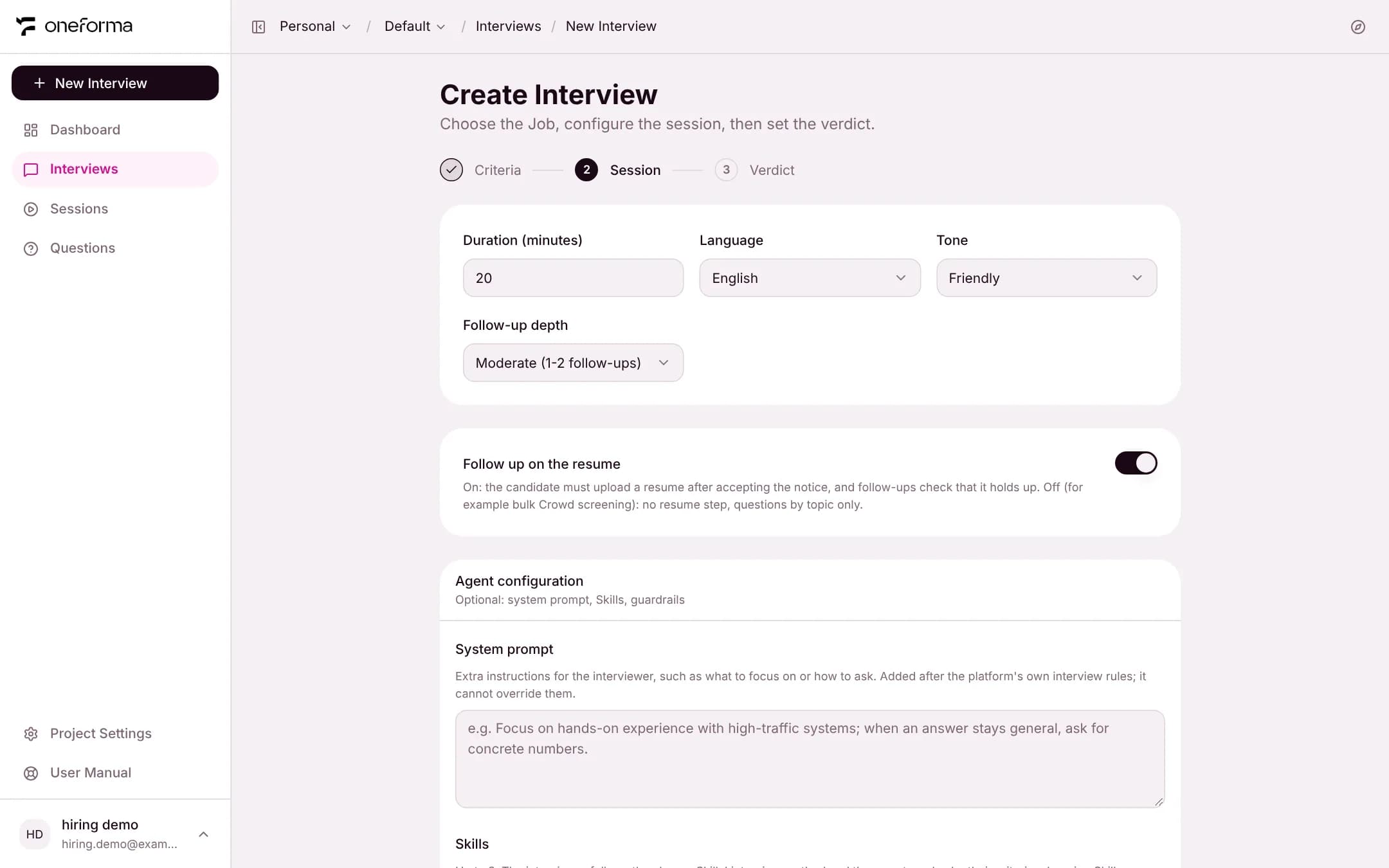
Session
Set the duration, language, tone and follow-up depth, decide whether to follow up on the resume, and check the candidate notice. The defaults suit most interviews.
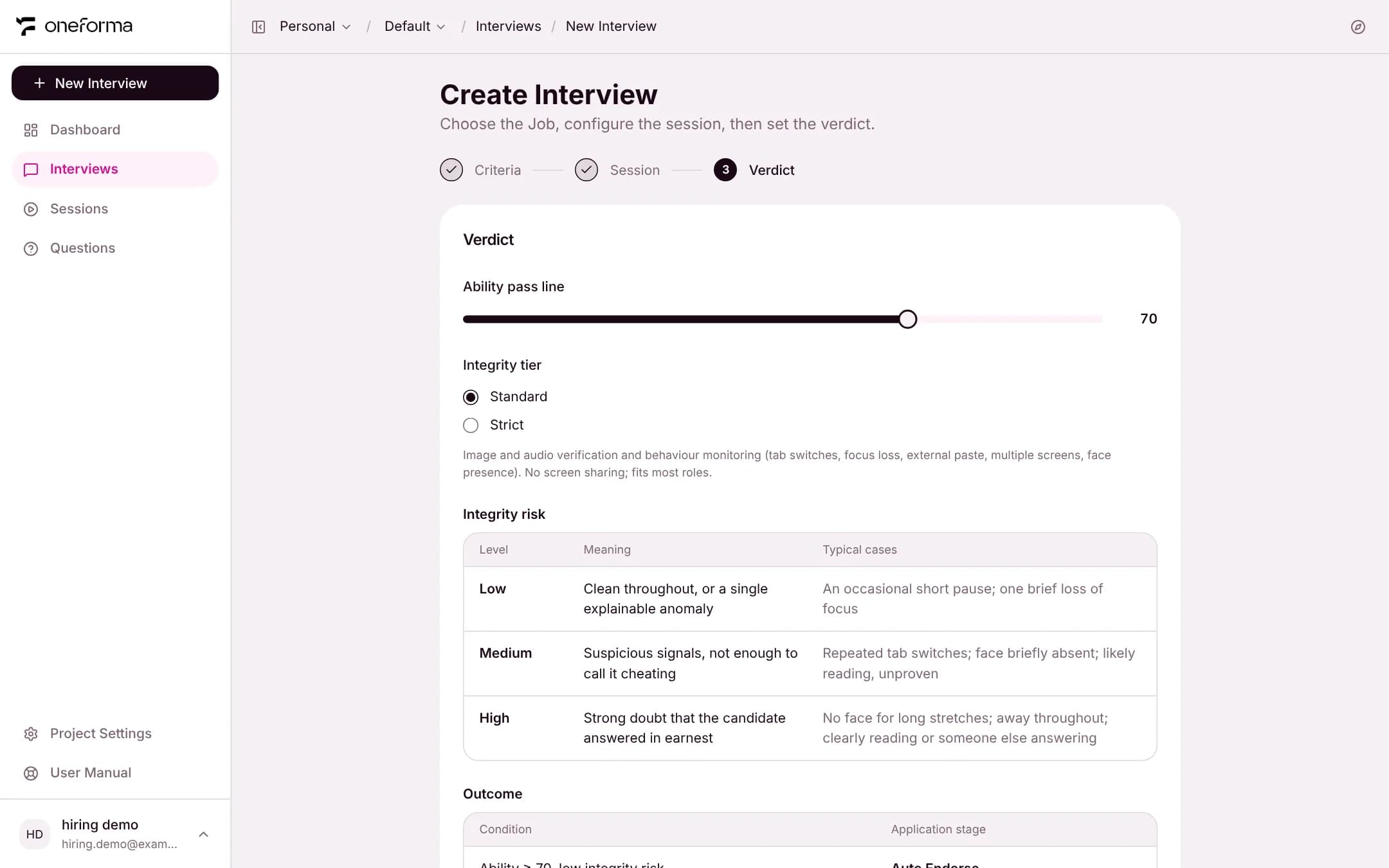
Verdict
Set the ability pass line (70 by default) and the integrity tier, then click Create interview.
Add candidates and share
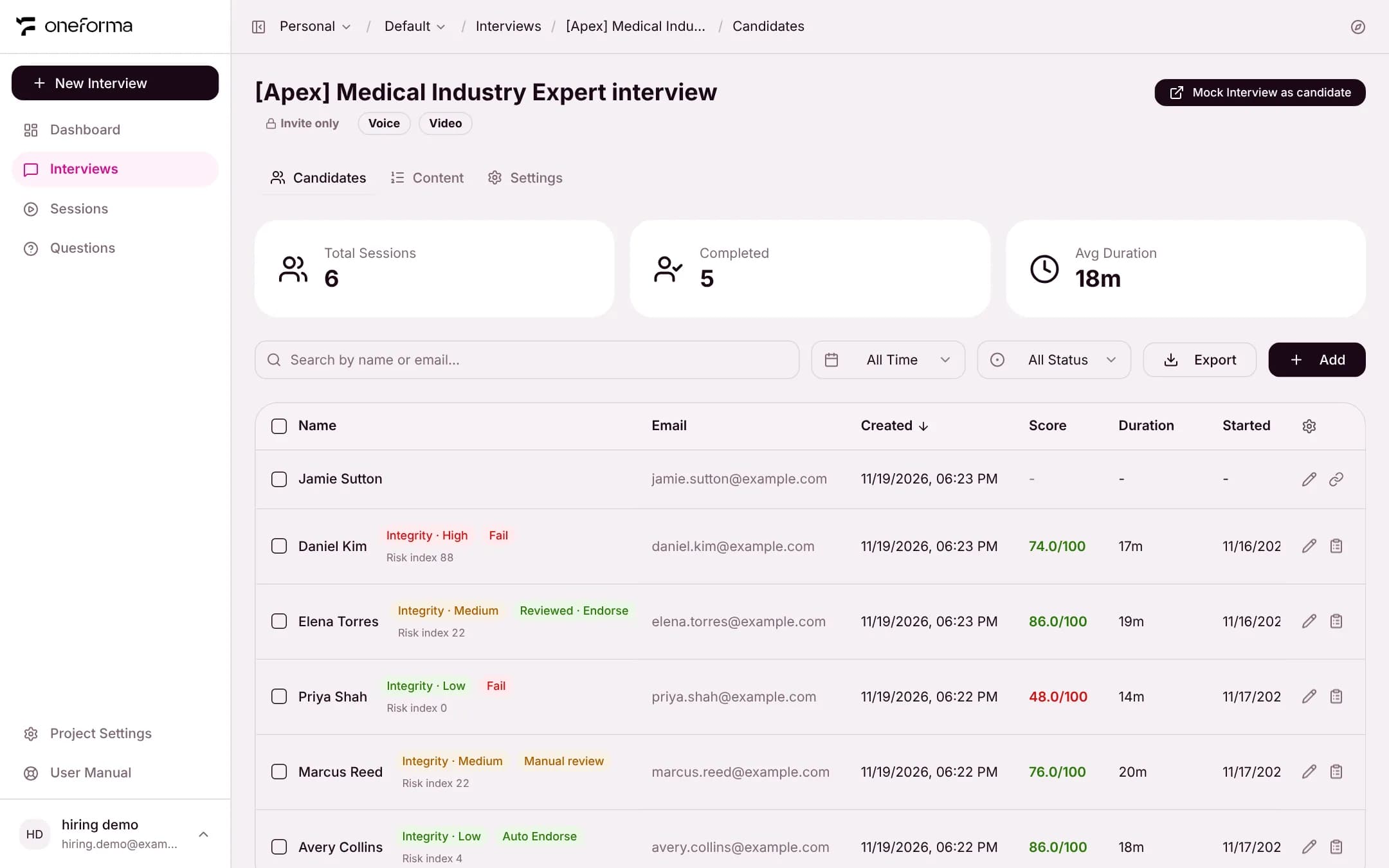
After creation you land on the Candidates tab. Add candidates one at a time (name, email, phone) or import them from Excel, then copy each candidate's invite link and send it.
Tip
Before sending the link to real candidates, click Mock Interview as candidate at the top right of the interview page to see the interview room as a candidate would.